
Continuum Manual
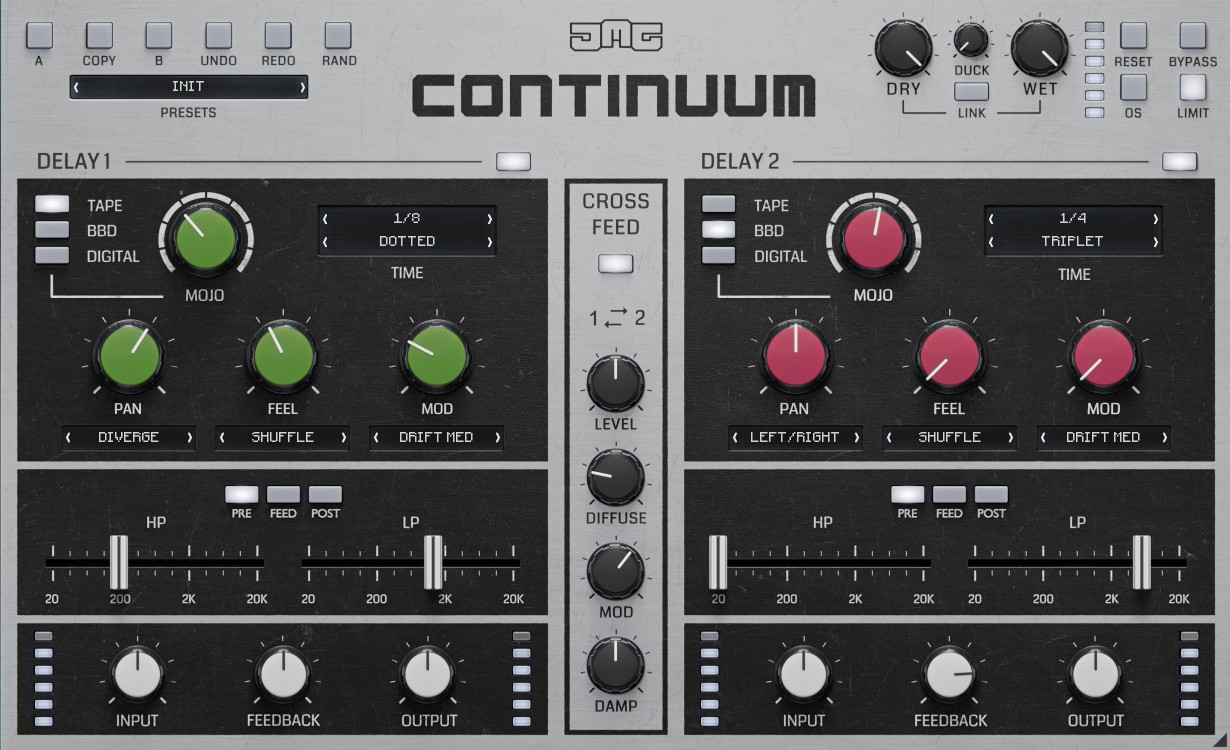
Continuum consists of two identical delay units, which you can use simultaneously and which can interact with each other.
Delay Units
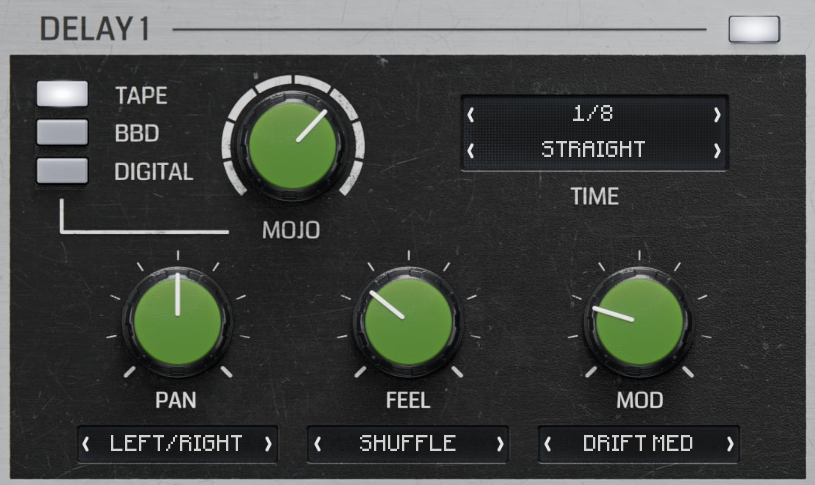
MODEL - Selects from 3 delay characters, modelled on real hardware. (TAPE/BBD/DIGITAL)
MOJO - Controls the amount of character for the selected model. The behaviour is different for each model. Use a little to add some charm or push it further for lo-fi grit.
DELAY TIME - Selects the length of the delay repeats.
DELAY MODE - Selects the mode for the delay time.
STRAIGHT - standard synced times.
DOTTED - dotted synced times.
TRIPLET - triplet synced times.
PATTERN - synced, with various combinations of repeat offsets (double or half)
FREE - non-synced time measured in milliseconds.
PAN - Controls the stereo balance. The behaviour is dependent on the selected mode.
PAN MODE - Selects the behaviour of the stereo balance.
LEFT/RIGHT - works like a standard pan control.
MID/SIDE - balances between mid and side channels.
OFFSET - the left or right channel is slightly delayed to create stereo width.
PING/PONG L/R - alternates the repeats between left and right.
PING/PONG M/S - alternates the repeats between mid and side.
ORBIT - makes the repeats feel like they are spinning in a circle.
BALANCED - is similar to ping/pong, but has a better loudness balance between the channels.
FOCUSED - is similar to ping/pong, but the first repeat is in the centre.
CONVERGE - ping/pong, where repeats start wide and get narrower.
DIVERGE - ping/pong, where repeats start narrow and get wider.
FADE OUT - repeats start close to the centre and get further left or right.
FADE IN - repeats start far left or right and get closer to the centre.
FEEL - Controls the amount of the currently selected mode.
FEEL MODE - Selects the mode.
SHUFFLE - delays every other repeat to make a classic swing feel.
ODD - reduces the level of the even repeats, accenting the odd repeats.
EVEN - reduces the level of the odd repeats, accenting the even repeats.
GROOVE - reduces the level of various combinations of repeats for a groove feel.
EARLY - shifts all repeats ahead of the beat for an urgent feel.
LATE - shifts all repeats behind the beat for a lazy feel.
MOD - Controls the depth of delay time modulation.
MOD MODE - Selects from 3 different types, all available at SLOW, MED and FAST speeds.
SINE - uses a classic sine LFO to modulate delay time.
DRIFT - simulates realistic analog variances in the delay time.
RAND - a smooth true random modulation of the delay time.
Filters
Each unit has a dedicated filter section.
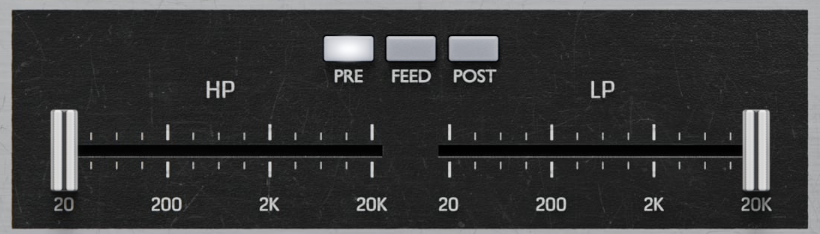
HP - controls the frequency of the high-pass filter.
LP - controls the frequency of the low-pass filter.
POSITION - selects where in the signal chain the filter is positioned.
PRE - places the filter at the input, before the delay. This is useful for tone shaping, while still hearing the full delay character.
FEED - places the filter inside the feedback loop. This makes the sound progressively more filtered with each repeat.
POST - places the filter at the output, after the delay. This filters everything, useful to remove any unwanted frequencies from the delay character.
Delay I/O
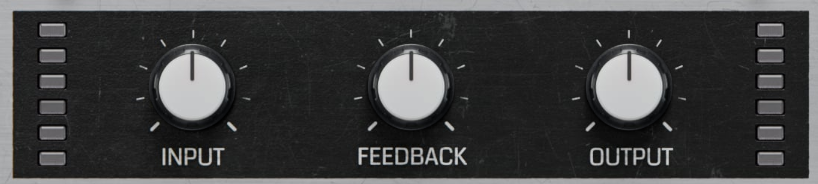
INPUT - controls the amount of signal coming into the delay. The centre position has no effect on the level. Turning to the left reduces the level down to silence. Turning to the right drives the signal into a gain-compensated pre-amp, adding analogue-style saturation. This control is also useful if you want to stop audio coming into the delay, but still hear any existing repeats already in the feedback loop.
FEEDBACK - controls the amount of signal that is fed back into the delay. Therefore, it controls the number of repeats.
OUTPUT - Controls the level of the delay. Use this (rather than INPUT) to control the desired volume of the effect.
Feed module
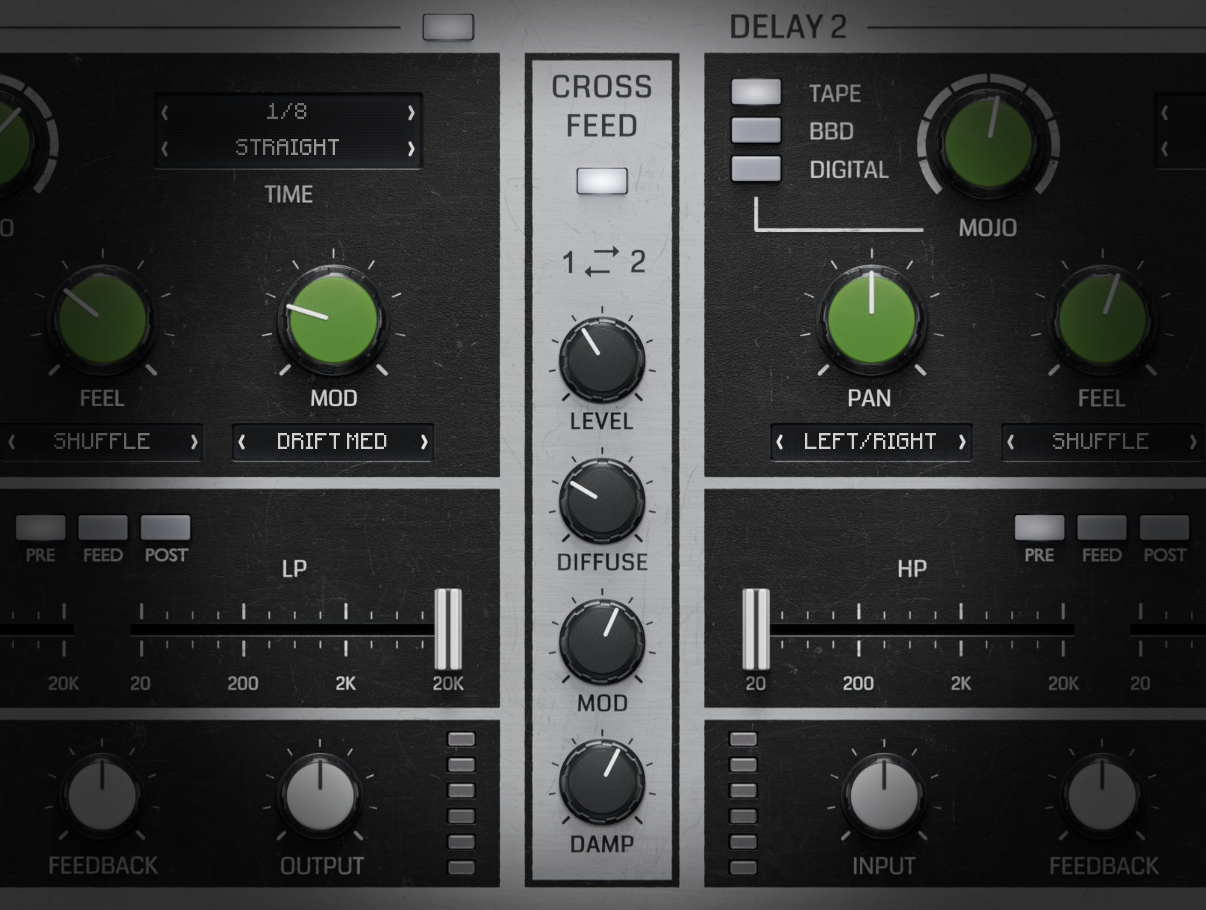
CROSSFEED - Takes the output of DELAY 1 and sends it to the input of DELAY 2, and vice versa. It can be used to create more complex delay patterns or even blend the delay repeats into a reverb.
LEVEL - controls the amount of signal sent to the respective delays.
DIFFUSE - places all-pass filters inside the feedback loop. This smears the sound into a reverb-like character.
MOD - modulates the delay times before they are sent to the respective delays.
DAMP - places high-pass and low-pass filters inside the feedback loop.
Main Output Section
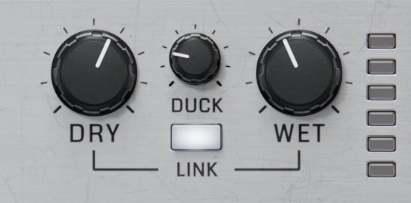
DRY - Controls the level of the unaffected signal.
WET - Controls the level of the affected signal.
LINK - Enables a mode where DRY and WET always equal 100%, therefore acting as a 1-knob dry/wet control.
DUCK - Controls the amount the wet signal is reduced when the dry signal is present. This moves the delay effect out of the way of the dry sound, helping to maintain clarity.
Common functions
(Available in most plugins)
Activate button - Opens a browser to locate the licence file to unlock the full version. (This can easily be handled by UnitedPlugins Manager right after installation)
Toolbar
Continuum features several standard controls, which can improve your workflow.
A, B and Copy buttons - The plugin remembers two sets of settings, A and B. Clicking any of these two buttons switches between these two settings. The selected one is highlighted in red. This is a great way for A/B checking and selecting the best settings. The "Copy" button copies the current settings to the other slot (if A is currently selected, the button will copy the current settings to slot B).
Presets and right and left arrows - The plugin comes with a set of presets, which should do the trick for most cases. Access them using the right and left arrows or by clicking the preset field directly. There, you can save and manage your own presets as well.
Undo/Redo - Will revert back one step to help avoid the accidental change of parameter values.
Background Right-Click Menu
Right-click anywhere in the plugin background with the right mouse button, and you will get access to the following features.
Scale the GUI precisely by percentage.
Get the version info.
Access the product web page, reach support and the online documentation.
Contact support
Open the presets folder (to add, arrange or delete presets manually)
Activate/Deactivate the plugin
Access Licence Manager (to activate or deactivate the plugin or several plugins at the same time)
Disable/Enable GPU Acceleration.
Disable/Enable Intelligent sleep on silence function that disables the plugin when no sound is on input or output to save the CPU power.
Parameter Right-Click Menu
Right-click any parameter to call up a menu that gives you access to:
The parameter description
Parameter reset
Double-click Menu
Some parameters let you access more accurate numeric settings by double-clicking the knobs.
Presets and left-right arrows
The plugin comes with a set of presets, which should do the trick for most cases or give you a good starting point when tweaking your sound. Access them using the right and left arrows, or by clicking the preset field directly. You can save and manage your own presets there as well. In your computer, presets are stored in the following paths:
Windows:
c:\Users\USER NAME\AppData\Roaming\UnitedPlugins\PRESETS\Continuum
macOS X:
/Users/username/Library/Application Support/UnitedPlugins/PRESETS/Continuum
(Right-Click the plugin background to open the preset folder directly)
Installation and maintenance
Use UnitedPluginsManager (Downloads section) to install, uninstall, update, and activate the plugin.
Support
If you find yourself in trouble, please contact us via support@unitedplugins.com.
