
MorphVerb Manual
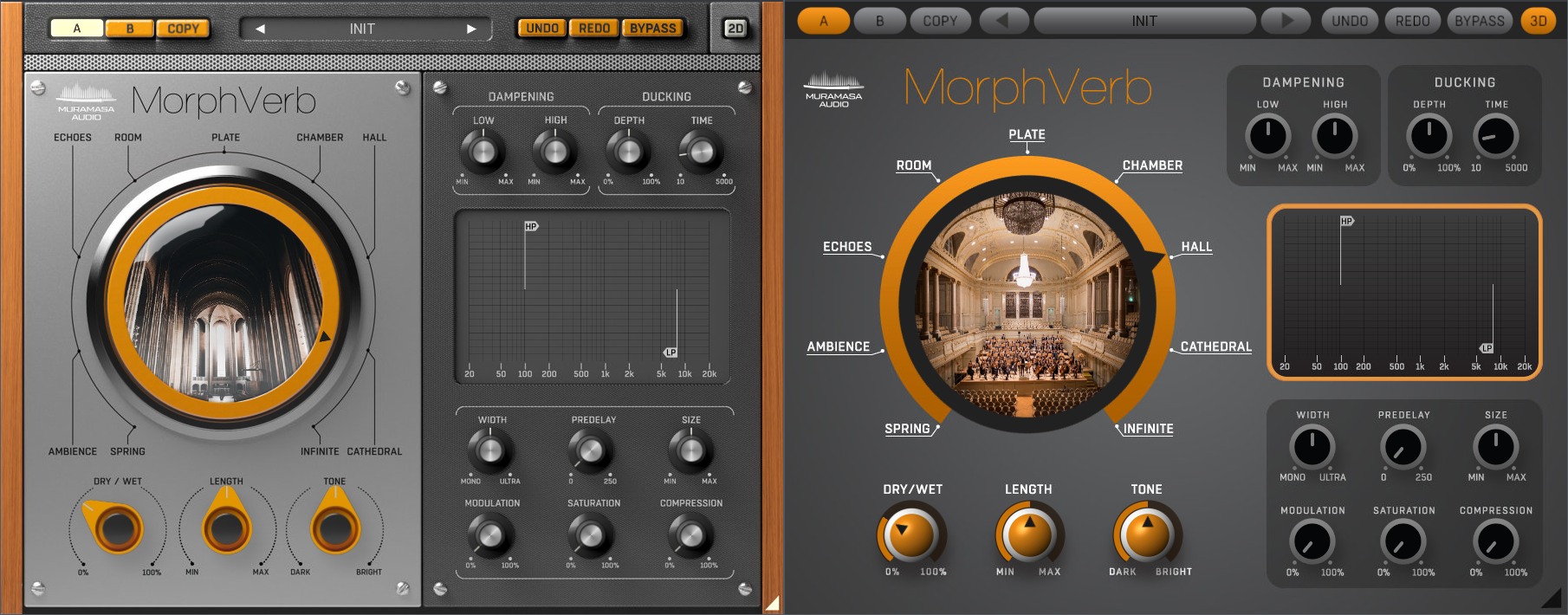
Main Controls
Mode - This wheel selects the algorithm used by MorphVerb. Turning the wheel always blends two neighbouring algorithms (ie. Room and Plate - if the wheel indicator points to the exact middle between Room and Plate you get 50% Room 50% plate). You can click at a reverb name (e.g. PLATE) to set the mode to the exact single reverb algorithm.
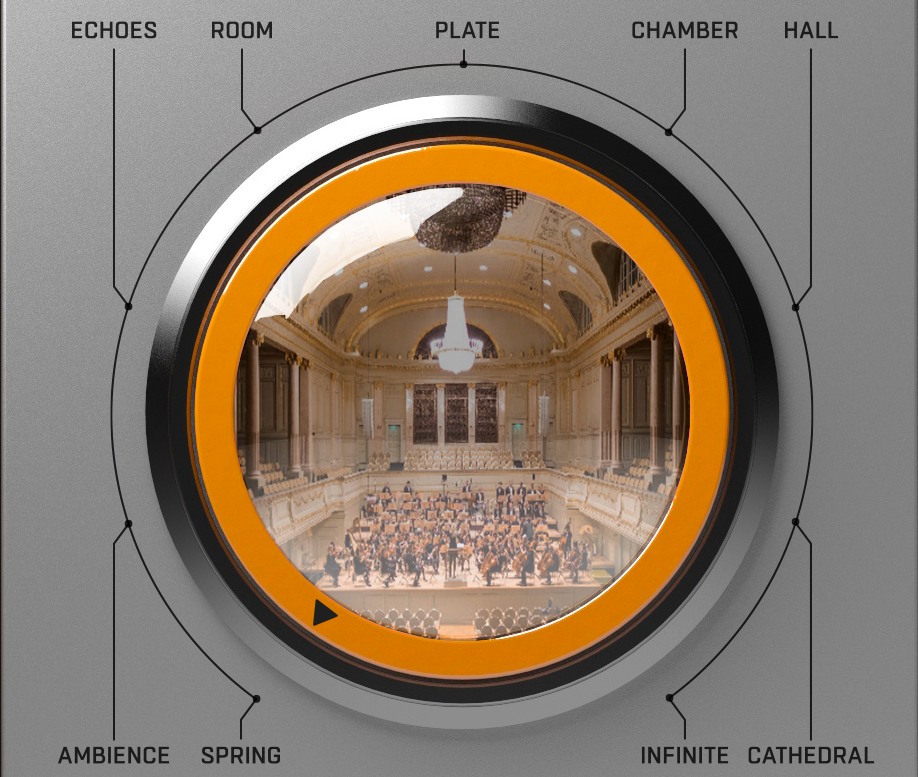
Dry/Wet: Sets the ratio between dry and effected signals.
Dry/Wet Lock - Locks the Dry/Wet knob in the selected position. When enabled, loading a preset will not change the Dry/Wet knob position.
Length - Determines the reverb time duration.
Tone - Defines the brightness of the reverb signal. Dark focuses the reverb mostly on the lower frequencies, bright focuses on the treble.
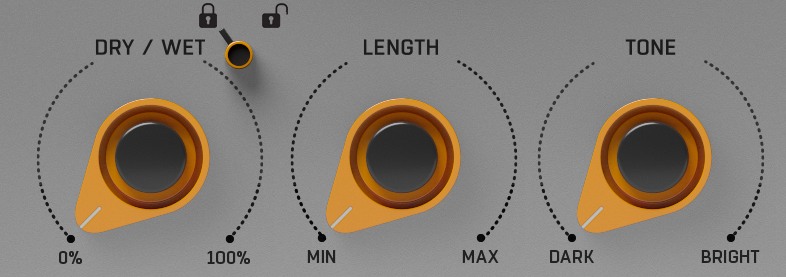
Tone Controls
Dampening
Low - Controls Dampening of low frequencies of the reflections. The higher the value, the faster the low frequencies decay.
High - Controls Dampening of high frequencies of the reflections. The higher the value, the faster the high frequencies decay.
Ducking
The Ducking function is designed to help the clean signal push through and not to lose punch and attack. When used, it lowers the wet signal level automatically whenever new dry signal comes to the plugin input.
Depth - Controls the amount of wet signal suppression.
Time - Determines how fast the wet signal level will get to its original state.
Filters
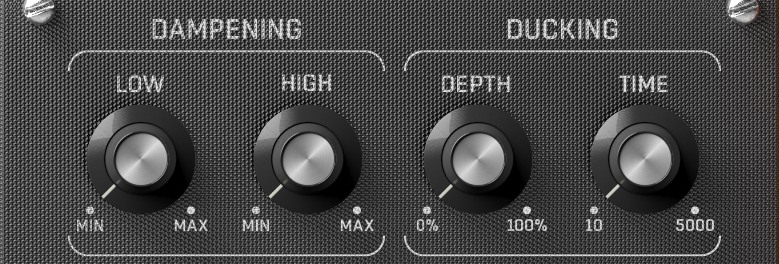
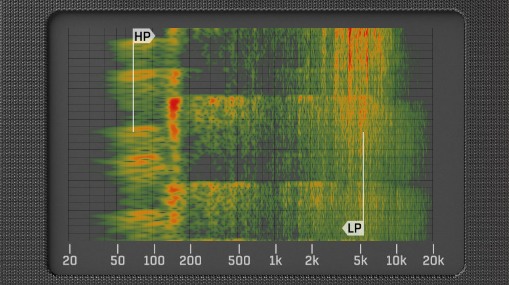
To set your HighPass and LowPass filters precisely as possible, Morphverb is equipped with a detailed real-time spectrogram.
HP HighPass - Cuts off reverberation signal low frequencies (20Hz–5kHz)
LP - LowPass - Cuts off reverberation signal high frequencies (0,2–20kHz)
Advanced Controls
MorphVerb also allows fine-tuning of the selected algorithm. These controls can be accessed in the bottom right corner of the plugin GUI.
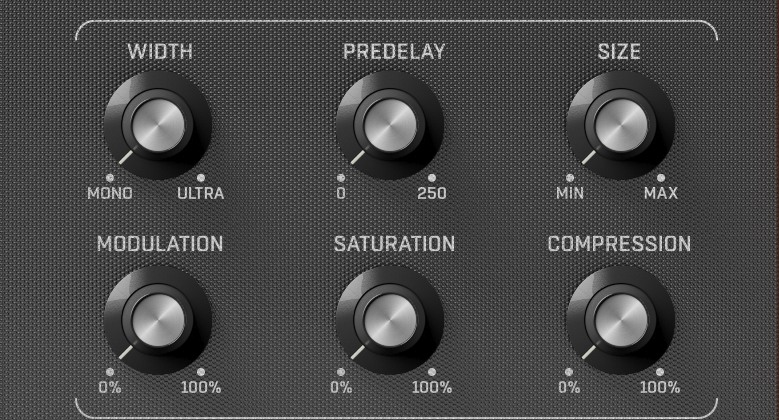
Width - This knob sets stereo width of reverb. 0 is the default, -100% makes the reverb mono, +100% makes it extra wide.
Predelay - Controls the Predelay time of the MorphVerb.
Size - Sets the size of simulated space.
Modulation - Sets the amount of the internal modulation, which makes the reverb sound lush and realistic.
Saturation - Sets the wet signal saturation amount.
Compression - Sets the wet signal compression amount.
3D/2D button - Hitting this button allows you to choose between the 2D and 3D graphical user interface. It has absolutely NO effect on SOUND nor on CPU usage.
Common functions
(Available in most plugins)
Activate button - Opens a browser to locate the licence file to unlock the full version. (This can easily be handled by UnitedPlugins Manager right after installation)
Toolbar
MorphVerb features several standard controls, which can improve your workflow.
A, B and Copy buttons - The plugin remembers two sets of settings, A and B. Clicking any of these two buttons switches between these two settings. The selected one is highlighted in red. This is a great way for A/B checking and selecting the best settings. The "Copy" button copies the current settings to the other slot (if A is currently selected, the button will copy the current settings to slot B).
Presets and right and left arrows - The plugin comes with a set of presets, which should do the trick for most cases. Access them using the right and left arrows or by clicking the preset field directly. There, you can save and manage your own presets as well.
Undo/Redo - Will revert back one step to help avoid the accidental change of parameter values.
Background Right-Click Menu
Right-click anywhere in the plugin background with the right mouse button, and you will get access to the following features.
Scale the GUI precisely by percentage.
Get the version info.
Access the product web page, reach support and the online documentation.
Contact support
Open the presets folder (to add, arrange or delete presets manually)
Activate/Deactivate the plugin
Access Licence Manager (to activate or deactivate the plugin or several plugins at the same time)
Disable/Enable GPU Acceleration.
Disable/Enable Intelligent sleep on silence function that disables the plugin when no sound is on input or output to save the CPU power.
Parameter Right-Click Menu
Right-click any parameter to call up a menu that gives you access to:
The parameter description
Parameter reset
Double-click Menu
Some parameters let you access more accurate numeric settings by double-clicking the knobs.
Presets and left-right arrows
The plugin comes with a set of presets, which should do the trick for most cases or give you a good starting point when tweaking your sound. Access them using the right and left arrows, or by clicking the preset field directly. You can save and manage your own presets there as well. In your computer, presets are stored in the following paths:
Windows:
c:\Users\USER NAME\AppData\Roaming\UnitedPlugins\PRESETS\MorphVerb
macOS X:
/Users/username/Library/Application Support/UnitedPlugins/PRESETS/MorphVerb
(Right-Click the plugin background to open the preset folder directly)
Installation and maintenance
Use UnitedPluginsManager (Downloads section) to install, uninstall, update, and activate the plugin.
Support
If you find yourself in trouble, please contact us via support@unitedplugins.com.
