
RoyalCompressor XT Manual
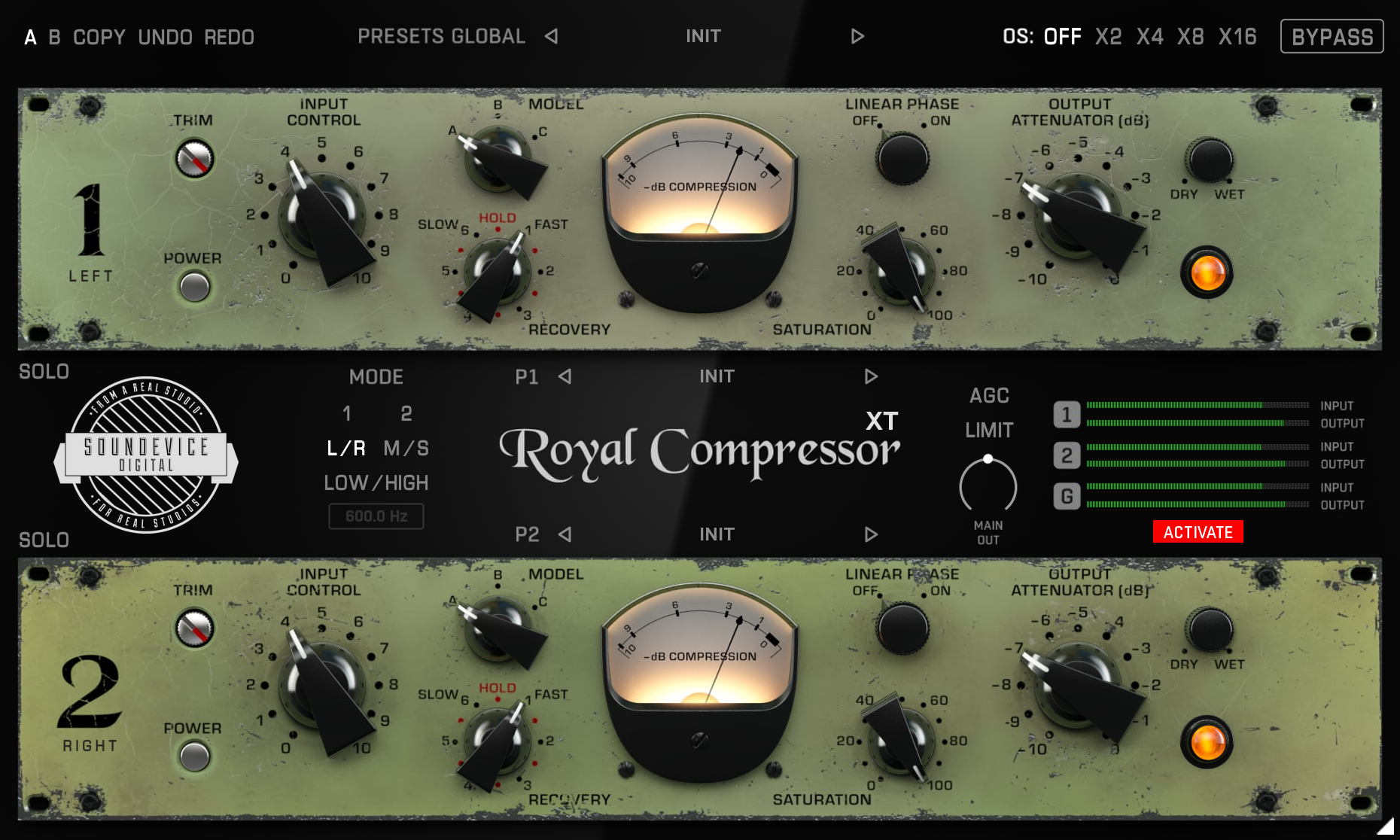
Royal Compressor XT Modes
The Mode selector in the centre section decides how the signal is sent to the two compressor units.
1 and 2: Both modes work just like the original Royal Compressor.
L/R: Unit 1 compresses the left channel, unit 2 the right channel. Ideal for double-tracked guitars, stereo overheads or unbalanced stereo recordings where one side is louder or busier than the other.
M/S: Unit 1 compresses the Mid signal (everything in the centre, like vocals, kick and bass); Unit 2 compresses the Side signal (stereo width, room and ambience).
Low/High: The signal is split by frequency. Unit 1 compresses the frequencies below the crossover, unit 2 the frequencies above it.
Crossover frequency: Sets the split point of the Low/High mode (default 600 Hz). The field is inactive in other modes.
Tip: Each unit can be switched off with its Power button. Want to compress only the sides, or only the low frequencies? Just switch off the other unit. Use Solo to hear exactly what each unit is doing.
Royal Compressor XT Controls
Royal Compressor XT's simple user interface easily adapts to your screen—it will be the same size on any screen, whether low-DPI or modern high-DPI/retina. Drag the bottom-right corner to change the GUI size. Make it smaller to save valuable screen space, or enlarge it to make it easier to use.
Both compressor units have identical controls and are set independently.
Trim: Pad that trims signal from 0 to silence (-100dB) to calibrate the overall effect volume.
Input Control: This knob controls the input gain of the compressor unit. Value 0 represents 0 dB, while 10 adds 24 dB to your signal.
Model: Each of the three pieces of compressors we modelled had a different character and attack times. Model A has the slowest attack (70ms), and it is the cleanest one. Model C is the fastest (17 ms attack) and the most colourful.
Recovery: Stepped Recovery switch controls the compression release time. It provides six recovery time options from the slowest (6) to the fastest (1). Red coloured dots represent five identical “HOLD” positions. Those will keep the source signal compressed to the most recently processed peak level. The release time in HOLD position is very, very, very, very long.
Saturation: Using the effect in a creative way can make you want to control the amount of saturation independently of compression level. The real hardware models wouldn't let you do that. Real-life vintage device character would be represented by 100% saturation value.
Meter: Shows gain reduction values of the unit in real time.
Power: Bypasses the compressor unit. Each unit has its own Power switch.
Solo: Plays only the signal of this unit, so you can hear exactly what it processes (for example, only the Side signal or only the low frequencies).
Output Attenuator: This knob controls the compressor unit's output volume.
Dry/Wet: This knob mixes the Dry and Wet (processed) signals after the Input Control and before the Saturation.
Linear Phase: Enables switching to Phase Linear processing of the unit. Using this function increases the plugin latency!
Main Output and Metering
AGC: Automatic gain control automatically controls the output volume depending on the input gain changes. Leaves the Output Attenuators unaffected.
Limit: Limiter on the main output that catches the peaks.
Main Out: Controls the overall output volume of the plugin.
Meters 1 / 2 / G: Show input and output levels of unit 1, unit 2 and the global signal.
Presets and Processing
Global presets: Store the whole plugin—both units, the mode and the main output settings.
P1 / P2: Preset browsers for unit 1 and unit 2. You can load presets between the units—a setting saved from unit 1 can be loaded into unit 2 and vice versa.
OS: Oversampling Off, X2, X4, X8 or X16 for cleaner, alias-free saturation. Higher values use more CPU.
Bypass: Bypasses the whole plugin without clicks, with latency compensation.
Common functions
(Available in most plugins)
Activate button - Opens a browser to locate the licence file to unlock the full version. (This can easily be handled by UnitedPlugins Manager right after installation)
Toolbar
Royal Compressor XT features several standard controls, which can improve your workflow.
A, B and Copy buttons - The plugin remembers two sets of settings, A and B. Clicking any of these two buttons switches between these two settings. The selected one is highlighted in red. This is a great way for A/B checking and selecting the best settings. The "Copy" button copies the current settings to the other slot (if A is currently selected, the button will copy the current settings to slot B).
Presets and right and left arrows - The plugin comes with a set of presets, which should do the trick for most cases. Access them using the right and left arrows or by clicking the preset field directly. There, you can save and manage your own presets as well.
Undo/Redo - Will revert back one step to help avoid the accidental change of parameter values.
Background Right-Click Menu
Right-click anywhere in the plugin background with the right mouse button, and you will get access to the following features.
Scale the GUI precisely by percentage.
Get the version info.
Access the product web page, reach support and the online documentation.
Contact support
Open the presets folder (to add, arrange or delete presets manually)
Activate/Deactivate the plugin
Access Licence Manager (to activate or deactivate the plugin or several plugins at the same time)
Disable/Enable GPU Acceleration.
Disable/Enable Intelligent sleep on silence function that disables the plugin when no sound is on input or output to save the CPU power.
Parameter Right-Click Menu
Right-click any parameter to call up a menu that gives you access to:
The parameter description
Parameter reset
Double-click Menu
Some parameters let you access more accurate numeric settings by double-clicking the knobs.
Presets and left-right arrows
The plugin comes with a set of presets, which should do the trick for most cases or give you a good starting point when tweaking your sound. Access them using the right and left arrows, or by clicking the preset field directly. You can save and manage your own presets there as well. In your computer, presets are stored in the following paths:
Windows:
c:\Users\USER NAME\AppData\Roaming\UnitedPlugins\PRESETS\Royal Compressor XT
macOS X:
/Users/username/Library/Application Support/UnitedPlugins/PRESETS/Royal Compressor XT
(Right-Click the plugin background to open the preset folder directly)
Installation and maintenance
Use UnitedPluginsManager (Downloads section) to install, uninstall, update, and activate the plugin.
Support
If you find yourself in trouble, please contact us via support@unitedplugins.com.
