
Tetrasonic Manual
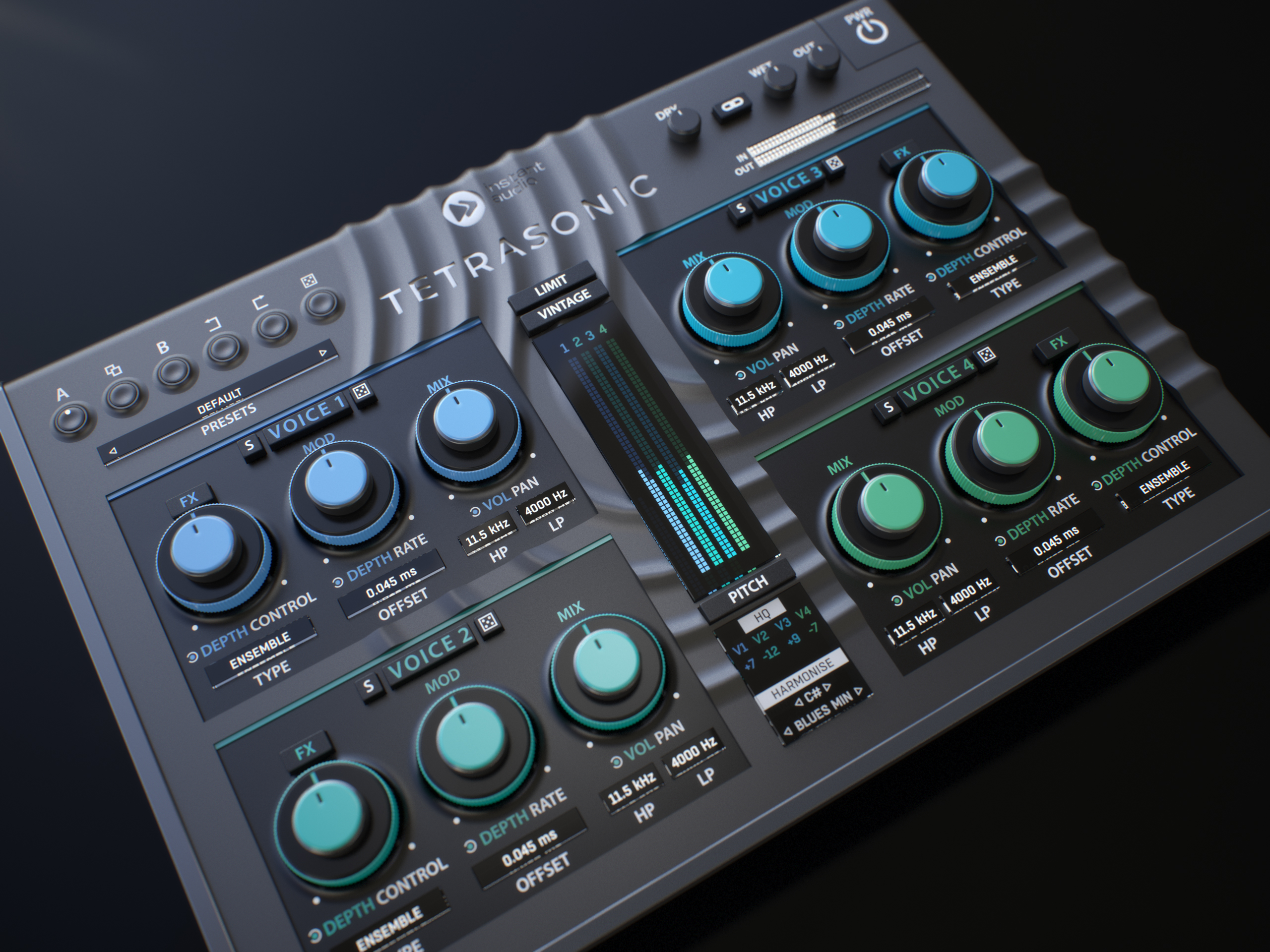
How Tetrasonic Works
Tetrasonic splits the input signal into four parallel voices and mixes them back with the original dry signal. Every voice runs through the same chain, but each one is set independently:
Pitch → Mod (vibrato) → FX (one of 12 effects) → Mix (filters, offset, level and pan).
Voices 1 and 2 are on the left side of the interface, voices 3 and 4 on the right. The centre column holds the voice meters, the Limit and Vintage switches and the Pitch section.
Tip: Start with two voices panned left and right, a small Offset and a little Mod depth for a classic stereo chorus. Then add the other two voices with a pitch interval or an effect to build something bigger.
Tetrasonic Voice Controls
Tetrasonic's simple user interface easily adapts to your screen—it will be the same size on any screen, whether low-DPI or modern high-DPI/retina. Drag the bottom-right corner to change the GUI size. Make it smaller to save valuable screen space, or enlarge it to make it easier to use.
All four voices have identical controls. Each large knob is a dual control: the inner knob sets the first parameter, the outer ring sets the second one.
Voice (title button): Switches the voice on or off. A switched-off voice is muted and its meter drops to zero.
S (Solo): Plays only this voice, so you can hear exactly what it adds to the sound.
Lock: Protects the voice settings from preset loading and from the randomizers. The Voice, Solo and Random buttons are not locked.
Dice (Random): Generates random settings for this voice.
P (Voice presets): Opens the preset browser for this voice. Voice presets are sorted by effect type and are shared by all four voices—a setting saved from voice 1 can be loaded into voice 3 and vice versa.
FX: Switches the voice effect on or off.
Depth / Control (FX knob): Depth sets the amount of the selected effect. Control changes its main character—for example the speed of modulation effects, the time of delays and reverbs, or the drive of distortion effects (see the table of effects below).
Type: Selects the voice effect: Chorus, Flange, Phase, Wobble, Delay, Reverb, Comb, Reverse, Tube, Crush, Fold or Trash.
Depth / Rate (MOD knob): Depth and speed of the pitch modulation (vibrato) of the voice. Small depth makes the voice slightly detuned and alive, higher values give a rich classic chorus sound.
Offset: Delays the voice against the original signal. Small values play with the phasing character, higher values separate the voice like a doubled take.
Vol / Pan (MIX knob): Level and stereo position of the voice.
HP: High-pass filter of the voice. It removes low frequencies, so the voice does not muddy the original—very useful on bass and drums.
LP: Low-pass filter of the voice. It removes high frequencies, making the voice darker and pushing it to the background.
Tip: While you turn any knob, its value is shown in the display under the voice meters.
Tetrasonic Effects
Every voice can use one of 12 effects. Depth always sets the amount of the effect; Control changes:
Chorus: modulation speed and range.
Flange: flanger speed, synced to the host tempo.
Phase: phaser speed, synced to the host tempo.
Wobble: wobble filter rhythm from 1/2 to 1/16, straight, triplet or dotted.
Delay: delay time, synced to the host tempo.
Reverb: reverb length.
Comb: frequency of the comb filter resonances.
Reverse: length of the reversed slices from 1/16 to 1/1.
Tube: drive of the warm tube saturation.
Crush: bit crushing and sample rate reduction.
Fold: drive of the wavefolder.
Trash: feedback and colour of the aggressive distortion.
Pitch and Harmonizer
Pitch: Enables pitch shifting of all four voices. When disabled, the voices keep the original pitch and only the modulation, effects and mix settings are applied.
V1–V4: Pitch interval of each voice in semitones, from -12 to +12. Click and drag the value up or down.
HQ: High-quality pitch processing. It sounds smoother and more natural, but uses more CPU and adds latency.
Dice (Rand Pitch): Generates random pitch intervals for all four voices.
Harmonise: Makes the voices follow the selected key and scale, so the intervals always fit the song. When disabled, each voice is shifted by a fixed number of semitones.
Key / Scale: Root note and scale used by Harmonise. Choose from 20 scales, from Chromatic and Major/Minor to modes and exotic scales.
Lock: Protects the whole Pitch section (including Pitch on/off, HQ, Harmonise, Key, Scale and the intervals) from preset loading and from the randomizers.
Tip: Harmonise needs a monophonic input—a single vocal, a lead instrument or a bass line. On chords, use fixed intervals (Harmonise off) instead, for example 0 / 0 / +12 / +12 for an octave shimmer.
Main Output and Metering
Dry: Level of the original, unprocessed signal.
Wet: Level of all four voices together.
Link: Links Dry and Wet: turning one of them up turns the other one down, so the overall balance stays the same.
Out: Controls the overall output volume of the plugin.
Lock: Protects Dry, Link, Wet and Out from preset loading and from the randomizers. Browse presets and keep your mix level at the same time.
Resync: The circular arrows under the Wet knob reset the processing—useful when delays, reverbs or modulations get out of sync after jumping in the timeline.
Vintage: Emulates the warmth and drift of vintage analog choruses: less regular modulation, slowly drifting speed and gentle saturation.
Limit: Safety limiter on the output that prevents clipping.
Meters: IN and OUT show the input and output levels; the centre column shows the left and right level of each voice.
Presets and Randomizing
Global presets: Store the whole plugin—all four voices, the Pitch section and the output settings. Factory presets are sorted into Guitar, Bass, Vocal, Keys, Drums and Rooms.
Voice presets (P): Store and load the settings of a single voice, sorted by effect type.
A / B, Copy: Two independent settings you can switch between and compare; Copy copies the current setting to the other slot.
Undo / Redo: Steps back and forward through your changes.
Dice (global Random): Generates random settings for all four voices including their pitch intervals. Locked sections stay untouched.
PWR: Bypasses the whole plugin.
Common functions
(Available in most plugins)
Activate button - Opens a browser to locate the licence file to unlock the full version. (This can easily be handled by UnitedPlugins Manager right after installation)
Toolbar
Tetrasonic features several standard controls, which can improve your workflow.
A, B and Copy buttons - The plugin remembers two sets of settings, A and B. Clicking any of these two buttons switches between these two settings. The selected one is highlighted in red. This is a great way for A/B checking and selecting the best settings. The "Copy" button copies the current settings to the other slot (if A is currently selected, the button will copy the current settings to slot B).
Presets and right and left arrows - The plugin comes with a set of presets, which should do the trick for most cases. Access them using the right and left arrows or by clicking the preset field directly. There, you can save and manage your own presets as well.
Undo/Redo - Will revert back one step to help avoid the accidental change of parameter values.
Background Right-Click Menu
Right-click anywhere in the plugin background with the right mouse button, and you will get access to the following features.
Scale the GUI precisely by percentage.
Get the version info.
Access the product web page, reach support and the online documentation.
Contact support
Open the presets folder (to add, arrange or delete presets manually)
Activate/Deactivate the plugin
Access Licence Manager (to activate or deactivate the plugin or several plugins at the same time)
Disable/Enable GPU Acceleration.
Disable/Enable Intelligent sleep on silence function that disables the plugin when no sound is on input or output to save the CPU power.
Parameter Right-Click Menu
Right-click any parameter to call up a menu that gives you access to:
The parameter description
Parameter reset
Double-click Menu
Some parameters let you access more accurate numeric settings by double-clicking the knobs.
Presets and left-right arrows
The plugin comes with a set of presets, which should do the trick for most cases or give you a good starting point when tweaking your sound. Access them using the right and left arrows, or by clicking the preset field directly. You can save and manage your own presets there as well. In your computer, presets are stored in the following paths:
Windows:
c:\Users\USER NAME\AppData\Roaming\UnitedPlugins\PRESETS\Tetrasonic
macOS X:
/Users/username/Library/Application Support/UnitedPlugins/PRESETS/Tetrasonic
(Right-Click the plugin background to open the preset folder directly)
Installation and maintenance
Use UnitedPluginsManager (Downloads section) to install, uninstall, update, and activate the plugin.
Support
If you find yourself in trouble, please contact us via support@unitedplugins.com.
