
Transmutator Manual
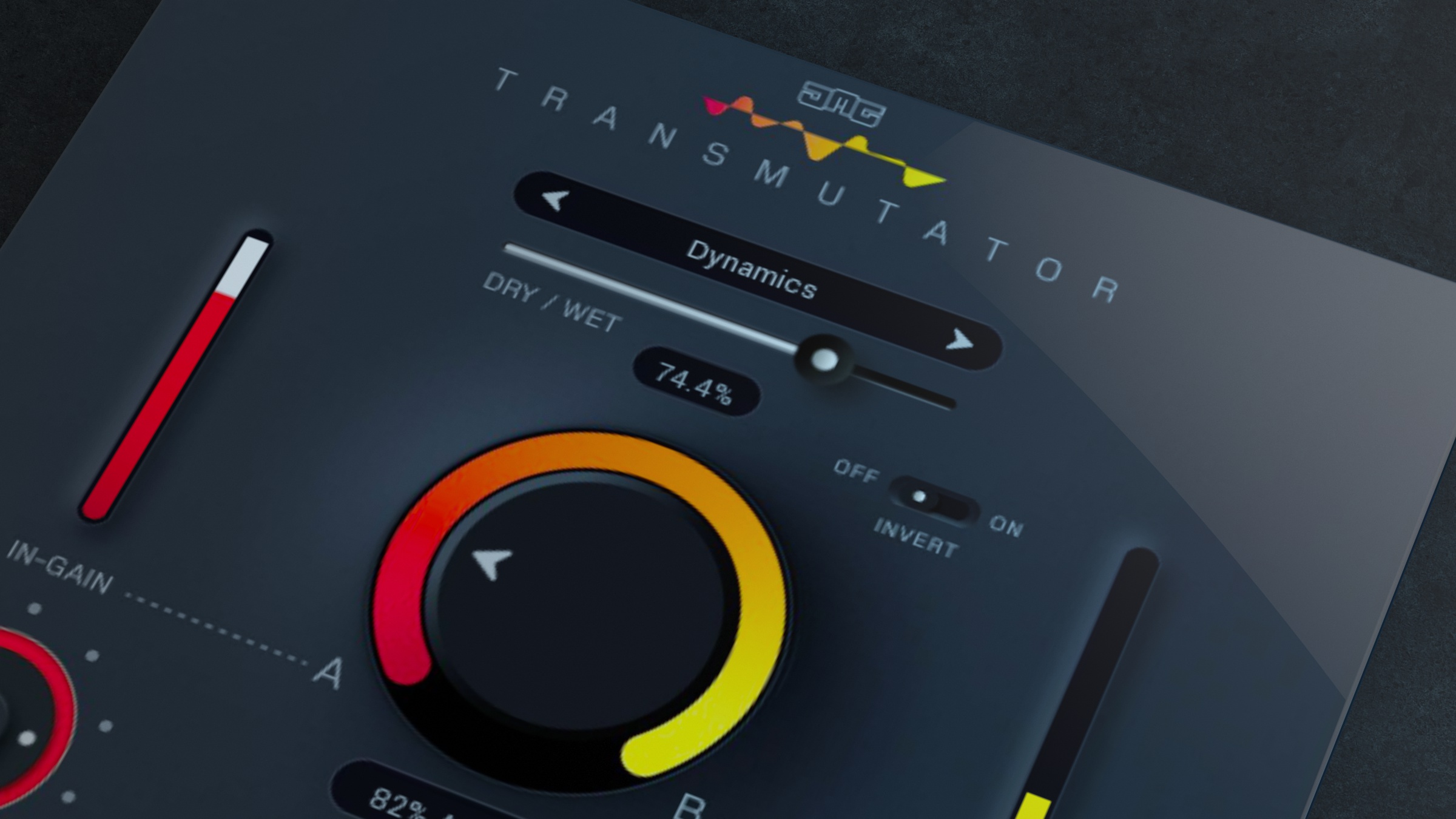
Transmutator has many uses including, transitioning from different sections in tracks (for example verse to chorus or build-up to drop), mixing between two songs (for example in a DJ set), or sound design by fusing and morphing two elements together in various creative ways.
Transmutator Controls
Dry/Wet - Blends between a standard volume crossfade and the effect of the currently selected mode. This allows for reducing the strength of the effect.
Invert - Switches the mode behaviour. It is different depending on the currently selected mode. This behaviour is specified in the description of each "Mode".
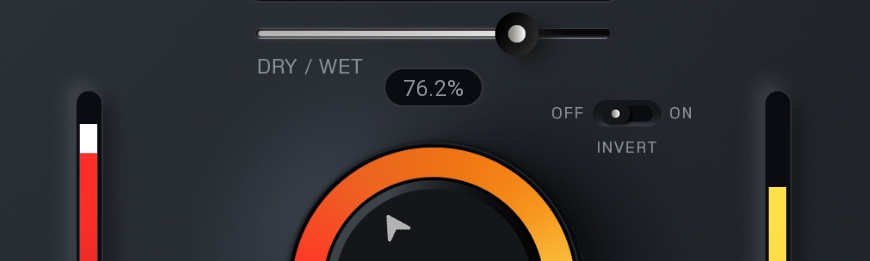
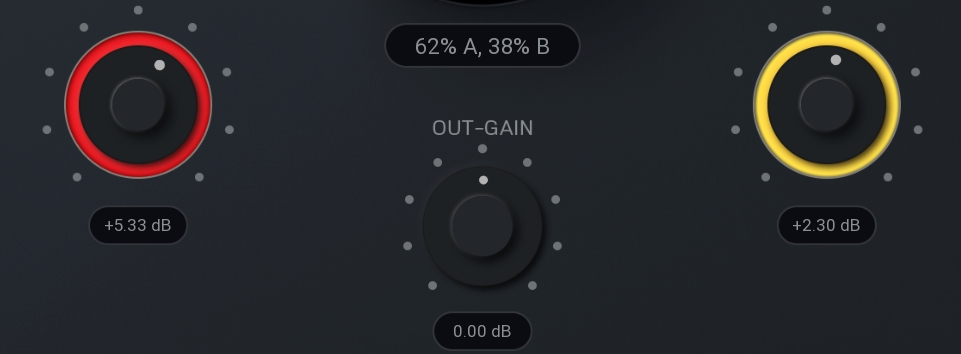
Gain In A & B - Are used to adjust the input and sidechain input signals from -24dB to +24dB. They are useful to help balance the two inputs to be similar in level. These gains are applied before the meters, so the meters act as a further visual representation to aid this balancing.
Gain Out - Is the last control in the signal chain and adjusts the level from -24dB to +24dB. It is useful to help balance the inputs and output to be similar in level.
Modes
Transmutator offers 16 blend modes, the effectiveness of each "Mode" depends entirely on the input signals. While generally it is advised to simply try the modes to see which sound best with your chosen audio, below are details for each mode that explain how the processing works.

Filter - A high-pass filter is applied to "A" and a low-pass to "B". The transition from 0% to 100% is the frequency of both filters increasing from 20Hz to 20kHz. This makes it sound like the transition is moving upwards. If "Invert" is enabled, then "A" has low-pass and "B" has high-pass, which sounds like the transition is moving downwards.
Spectrum - This uses spectral processing to separate the tonal and noise elements from the inputs. From 0% to 50% the noise from "A" is crossfaded with the noise from "B". So at 50%, you will hear the tone from "A" and the noise from "B". From 50% to 100% the tone from "A" is crossfaded with the tone from "B". In other words, the noise is transitioned first and the tone second, however, if "Invert" is enabled then the tone will be first and then the noise.
Morph - Uses an advanced spectral algorithm to blend the two inputs. The processing is not symmetrical, so "Invert" will flip the signals, which will give a very different result.
Stereo - Splits the inputs into their mid and side components. From 0% to 50% the mid from "A" is crossfaded with the mid from "B". So at 50%, you will hear the side from "A" and the mid form "B". From 50% to 100% the side from "A" is crossfaded with the side from "B". In other words, the mid is transitioned first and the side second, however, if "Invert" is enabled then the side will be first and then the mid.
Pan - Splits the inputs into their left and right components. From 0% to 50% the left from "A" is crossfaded with the left from "B". So at 50%, you will hear the right from "A" and the left form "B". From 50% to 100% the right from "A" is crossfaded with the right from "B". In other words, the left is transitioned first and the right second, however, if "Invert" is enabled then the right will be first and then the left.
Transients - Splits the inputs into their transient and tail components. From 0% to 50% the tail from "A" is crossfaded with the tail from "B". So at 50%, you will hear the transient from "A" and the tail form "B". From 50% to 100% the transient from "A" is crossfaded with the transient from "B". In other words, the tail is transitioned first and the transient second, however, if "Invert" is enabled then the transient will be first and then the tail.
Dynamics - Splits the inputs into their quiet (below the threshold) and loud (above the threshold) components. From 0% to 50% the quiet from "A" is crossfaded with the quiet from "B". So at 50%, you will hear the loud from "A" and the quiet form "B". From 50% to 100% the loud from "A" is crossfaded with the loud from "B". In other words, the quiet is transitioned first and the loud second, however, if "Invert" is enabled then the loud will be first and then the quiet.
Follow - Measures the amplitude shape of both inputs. From 0% to 50% the amplitude information from "B" is applied to "A". So at 50%, you will hear the sound of "A" with the amplitude shape of "B". From 50% to 100% there is a simple crossfade to "B". If "Invert" is enabled then, from 0% to 50% the sound crossfades from "A" to "B" while keeping the amplitude shape from "A". Then from 50% to 100% the amplitude shape is transitioned from "A" to "B".
Liquid - Splits the inputs into 64 spectral bands. From 0% to 50% the odd bands from "A" are crossfaded with the odd bands from "B". So at 50%, you will hear the even bands from "A" and the odd bands form "B". From 50% to 100% the even bands from "A" are crossfaded with the even bands from "B". In other words, the odd bands are transitioned first and the even bands second, however, if "Invert" is enabled then the even bands will be first and then the odd bands.
Multi - Splits the inputs into 6 frequency bands. From 0% to 50% the odd bands from "A" are crossfaded with the odd bands from "B". So at 50%, you will hear the even bands from "A" and the odd bands form "B". From 50% to 100% the even bands from "A" are crossfaded with the even bands from "B". In other words, the odd bands are transitioned first and the even bands second, however, if "Invert" is enabled then the even bands will be first and then the odd bands.
Diffuse - Uses spectral processing to create random variations in each frequency. The transition from 0% to 100% increases the randomness of "A" and decreases for "B". If "Invert" is enabled there is an additional spectral smearing effect added to the randomness.
Wash - Uses reverb to make "A" seem to get further away as "B" gets closer. The transition from 0% to 100% simply increases the reverb for "A" and decreases for "B". If "Invert" is enabled the reverb time will be very short.
Blur - Uses spectral freezing and blurring. The transition from 0% to 100% increases the effect for "A" while decreasing for "B". If "Invert" is enabled the spectral window is much shorter, creating a more artificial effect.
Pitch - Uses pitch shifting to slide up or down by 2 octaves. The transition from 0% to 100% decreases the pitch of "A" from 0 semitones to -24 semitones, while fading to "B" that decreases pitch from +24 semitones to 0 semitones. If "Invert" is enabled the pitches will increase not decrease.
Shift - Uses frequency shifting to slide up or down by 1000Hz. The transition from 0% to 100% decreases the frequency of "A" from 0Hz to -1000Hz, while fading to "B" that decreases frequency from 1000Hz to 0Hz. If "Invert" is enabled the frequency will increase not decrease.
Degrade - Uses digital distortion to degrade the audio creatively. The transition from 0% to 100% degrades "A" while fading to "B" that is becoming less degraded. The standard mode uses rate reduction while "Invert" uses a sample and hold effect.
Common functions
(Available in most plugins)
Activate button - Opens a browser to locate the licence file to unlock the full version. (This can easily be handled by UnitedPlugins Manager right after installation)
Toolbar
Transmutator features several standard controls, which can improve your workflow.
A, B and Copy buttons - The plugin remembers two sets of settings, A and B. Clicking any of these two buttons switches between these two settings. The selected one is highlighted in red. This is a great way for A/B checking and selecting the best settings. The "Copy" button copies the current settings to the other slot (if A is currently selected, the button will copy the current settings to slot B).
Presets and right and left arrows - The plugin comes with a set of presets, which should do the trick for most cases. Access them using the right and left arrows or by clicking the preset field directly. There, you can save and manage your own presets as well.
Undo/Redo - Will revert back one step to help avoid the accidental change of parameter values.
Background Right-Click Menu
Right-click anywhere in the plugin background with the right mouse button, and you will get access to the following features.
Scale the GUI precisely by percentage.
Get the version info.
Access the product web page, reach support and the online documentation.
Contact support
Open the presets folder (to add, arrange or delete presets manually)
Activate/Deactivate the plugin
Access Licence Manager (to activate or deactivate the plugin or several plugins at the same time)
Disable/Enable GPU Acceleration.
Disable/Enable Intelligent sleep on silence function that disables the plugin when no sound is on input or output to save the CPU power.
Parameter Right-Click Menu
Right-click any parameter to call up a menu that gives you access to:
The parameter description
Parameter reset
Double-click Menu
Some parameters let you access more accurate numeric settings by double-clicking the knobs.
Presets and left-right arrows
The plugin comes with a set of presets, which should do the trick for most cases or give you a good starting point when tweaking your sound. Access them using the right and left arrows, or by clicking the preset field directly. You can save and manage your own presets there as well. In your computer, presets are stored in the following paths:
Windows:
c:\Users\USER NAME\AppData\Roaming\UnitedPlugins\PRESETS\Transmutator
macOS X:
/Users/username/Library/Application Support/UnitedPlugins/PRESETS/Transmutator
(Right-Click the plugin background to open the preset folder directly)
Installation and maintenance
Use UnitedPluginsManager (Downloads section) to install, uninstall, update, and activate the plugin.
Support
If you find yourself in trouble, please contact us via support@unitedplugins.com.
