
DuoFlux Manual
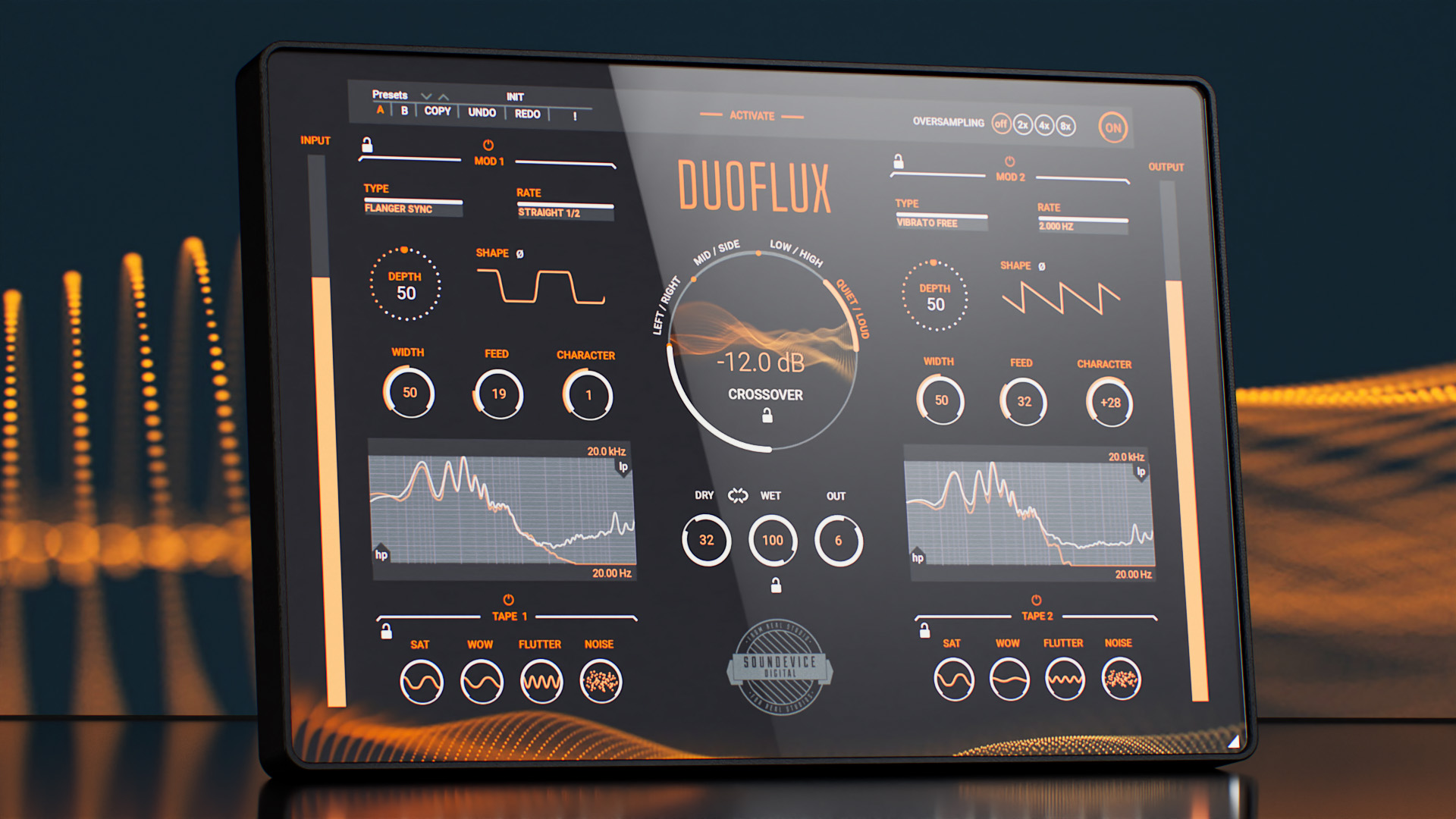
Global
Dry - Controls the level of the unaffected signal.
Wet - Controls the level of the effected signal.
Link - Selects if the Dry and Wet will be linked to behave like a single Dry/Wet control.
Out - Controls the overall final level of the plugin.
Mode - Selects the mode in which the signal is split into two.
Crossover - Controls the crossover and threshold for Low/High and Quiet/Loud modes.
Mod
Type - Selects the modulation effect type.
Depth - Controls the amount of the effect.
Rate - Controls the speed of the modulation; this can be synced or unsynced depending on the selected type.
Width - Controls the amount of phase offset between the left and right channels. This control is disabled for Left/Right and Mid/Side types.
Feed - Controls the amount of feedback.
Character - Controls a parameter for the current effect; it is different for each type. For example, it controls the delay time for the chorus and the resonance for the filter.
Shape - Controls the LFO shape. The sine wave is in the middle, move counterclockwise to morph into a saw and clockwise for a square.
Invert - Vertically flips the polarity of the shape.
HP - Controls the frequency of the high-pass filter.
LP - Controls the frequency of the low-pass filter.
Tape
Sat - Controls the amount of tape-style saturation.
Wow - Controls the amount of tape-style wow (slow) modulation.
Flutter - Controls the amount of tape-style flutter (fast) modulation.
Noise - Controls the amount of tape noise; it simulates head scrape, dust, and hiss.
Toolbar
OVERSAMPLING enables 8X oversampling.
BYPASS - Disables the plugin's processing.
ACTIVATE - Opens a browser to locate the licence file to unlock the full version.
COPY - Takes the settings from the currently selected A or B slot and copies them into the other slot.
A & B - Switches between two states of the plugin. This can be used to make better decisions by directly comparing the before and after.
UNDO/REDO - Will revert back one step to help avoid the accidental change of parameter values.
Presets and left-right arrows
The plugin comes with a set of presets, which should do the trick for most cases or give you a good starting point when tweaking your sound. Access them using the Presets button. You can save and manage your own presets there as well. In your computer, presets are stored in the following paths:
Windows:
c:\Users\USER NAME\AppData\Roaming\UnitedPlugins\PRESETS\PLUGIN NAME
macOS X:
/Users/username/Library/Application Support/UnitedPlugins/PRESETS/PLUGIN NAME
Right-click menu
Right-click anywhere in the plugin background with the right mouse button, and you will get access to the following features.
Scale GUI precisely by per cent.
Get the version info.
Access the product web page, reach support and access online documentation.
Contact support
Open the presets folder (to add, arrange or delete presets manually)
Activate/Deactivate the plugin
Access Licence Manager (to activate or deactivate the plugin or several plugins at the same time)
Disable/Enable GPU Acceleration.
Disable/Enable Intelligent sleep on silence function that disables the plugin when no sound is on the input or output to save CPU power.
Right-click any control (knob, button) to access help for the particular parameter.
Installation and maintenance
Use UnitedPluginsManager (Downloads section) to install, uninstall, update and activate the plugin.
If you are in trouble, please contact us at support@unitedplugins.com.
Updating and Uninstallation
Updating or removing the plugin to the newest version is as simple as running the UnitedPlugins Manager.
Trial and activation
Use UnitedPlugins Manager to activate and deactivate the plugin.
Support
Now that you’ve taken the time to learn all about Lofinity, enjoy and make your sound awesome! If our plug-ins helped you take your production to the next level, let us know, we’d love to hear from you and what you were able to create with our software.
If you encounter any problems, we offer free technical support for all registered users. Start with the frequently asked questions here:
http://www.unitedplugins.com/faq
If you need further assistance, you can find our Customer Support contact form at:
http://www.unitedplugins.com/contact
You can also reach our support staff by e-mail at:
support@unitedplugins.com
Common functions
(Available in most plugins)
Activate button - Opens a browser to locate the licence file to unlock the full version. (This can easily be handled by UnitedPlugins Manager right after installation)
Toolbar
Duoflux features several standard controls, which can improve your workflow.
A, B and Copy buttons - The plugin remembers two sets of settings, A and B. Clicking any of these two buttons switches between these two settings. The selected one is highlighted in red. This is a great way for A/B checking and selecting the best settings. The "Copy" button copies the current settings to the other slot (if A is currently selected, the button will copy the current settings to slot B).
Presets and right and left arrows - The plugin comes with a set of presets, which should do the trick for most cases. Access them using the right and left arrows or by clicking the preset field directly. There, you can save and manage your own presets as well.
Undo/Redo - Will revert back one step to help avoid the accidental change of parameter values.
Background Right-Click Menu
Right-click anywhere in the plugin background with the right mouse button, and you will get access to the following features.
Scale the GUI precisely by percentage.
Get the version info.
Access the product web page, reach support and the online documentation.
Contact support
Open the presets folder (to add, arrange or delete presets manually)
Activate/Deactivate the plugin
Access Licence Manager (to activate or deactivate the plugin or several plugins at the same time)
Disable/Enable GPU Acceleration.
Disable/Enable Intelligent sleep on silence function that disables the plugin when no sound is on input or output to save the CPU power.
Parameter Right-Click Menu
Right-click any parameter to call up a menu that gives you access to:
The parameter description
Parameter reset
Double-click Menu
Some parameters let you access more accurate numeric settings by double-clicking the knobs.
Presets and left-right arrows
The plugin comes with a set of presets, which should do the trick for most cases or give you a good starting point when tweaking your sound. Access them using the right and left arrows, or by clicking the preset field directly. You can save and manage your own presets there as well. In your computer, presets are stored in the following paths:
Windows:
c:\Users\USER NAME\AppData\Roaming\UnitedPlugins\PRESETS\Duoflux
macOS X:
/Users/username/Library/Application Support/UnitedPlugins/PRESETS/Duoflux
(Right-Click the plugin background to open the preset folder directly)
Installation and maintenance
Use UnitedPluginsManager (Downloads section) to install, uninstall, update, and activate the plugin.
Support
If you find yourself in trouble, please contact us via support@unitedplugins.com.
