
FireCobra Manual
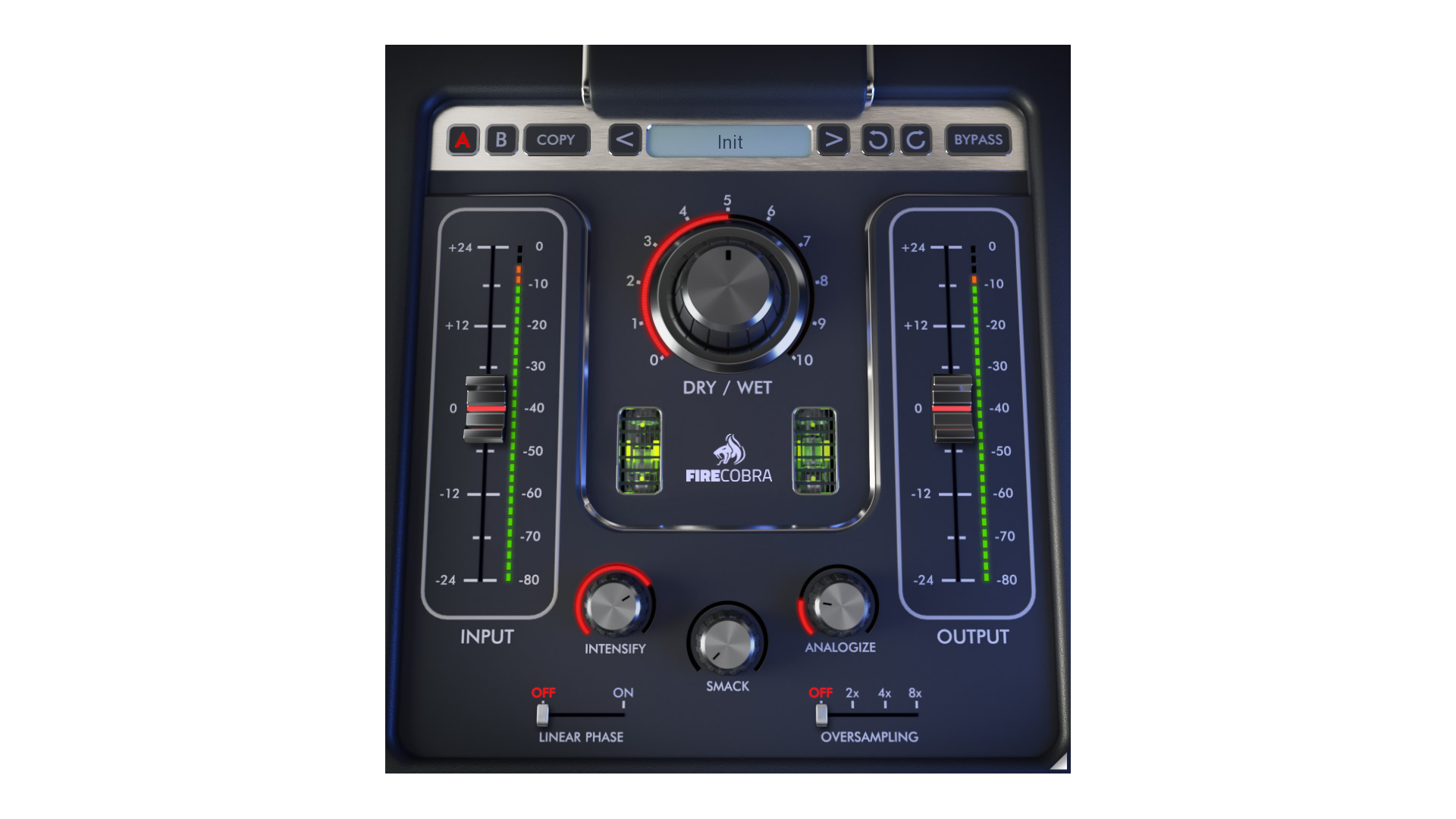
We have years of expertise in analogue & digital audio processing. That led us to create a plugin that takes the best of both worlds.
Behind its simple user interface, there's more technology than you'd probably use in a big mixing project. FireCobra intelligently analyses the audio signal and makes it sound punchier, more powerful and better in general. FireCobra will make your mixes better with nearly no time wasted on setting it up. Just put it on every track you'd like to enhance and set how much, that's all.
FireCobra Controls
FireCobra features a nice-looking, simple user interface, which adapts to your screen - it will be the same size on any screen, whether it is low-DPI or modern high-DPI / retina. You can always drag the arrow in the bottom right corner to change its size - make it smaller to save valuable screen space, or enlarge it to make it easier to use.
DRY/WET - Using FireCobra is ridiculously simple. In most cases, all you need is the DRY/WET knob. Increase its value to get more enhancement, and vice versa. Be careful. FireCobra may sound almost too addictive, and it may be easy to over-process your material. Always keep in mind that sometimes less is better. Making every track in your mix too powerful can make the mix become crowded.
The DRY/WET knob controls the amounts for the following 3 enhancement algorithms provided by FireCobra. You can control each separately, and DRY/WET defines the overall level of enhancement.
INTENSIFY - The first algorithm usually gives the best results. It is based on some advanced dynamics processing. It makes the overall sound tighter. It brings up the elements that are drowned and hard to perceive and attenuates parts, which are killing the others. Settings this parameter to the minimum value will disable the algorithm to save CPU.
SMACK - The second algorithm is inspired by rare analogue devices. It creates unique harmonic distortion, which makes the audio sound dirtier and more audible in the mix. By default, It is disabled by setting its level to the minimum value. That is to save CPU and make the results cleaner. That is, we believe, a good starting point.
ANALOGIZE - The third algorithm is based on classic analogue saturation units. Since most audio signals benefit from a bit of the analogue mojo, this one is not disabled by default.
LINEAR-PHASE - All of the algorithms require complex filtering, which requires phase alteration. We believe that the default minimum phase processing generally sounds the best and most natural. But we took advantage of the digital domain, which lets us perform the so-called linear-phase filtering. That does not alter the phase but requires latency (therefore it cannot be used in live scenarios). Linear-phase processing is also specific for its "pre-ringing" artefacts. It is often sought when mastering in order to introduce as little change to the sound as possible.
OVERSAMPLING - FireCobra performs solid nonlinear processing, so it can produce aliasing when pushed too hard. In these cases, oversampling would help by processing at higher sampling rates. The cost is much higher due to CPU usage and latency (therefore, it cannot be used in live scenarios). Always check closely if it actually improves the sound quality, and if not, do not use it. Do not use oversampling "just in case"; use it only when there's a benefit.
INPUT & OUTPUT - FireCobra features handy input and output peak meters, as well as gain controls. Their meaning is self-explanatory. But it's a good thing to note that for optimal results input level should stay in say -10dB to -30dB range.
Common functions
(Available in most plugins)
Activate button - Opens a browser to locate the licence file to unlock the full version. (This can easily be handled by UnitedPlugins Manager right after installation)
Toolbar
FireCobra features several standard controls, which can improve your workflow.
A, B and Copy buttons - The plugin remembers two sets of settings, A and B. Clicking any of these two buttons switches between these two settings. The selected one is highlighted in red. This is a great way for A/B checking and selecting the best settings. The "Copy" button copies the current settings to the other slot (if A is currently selected, the button will copy the current settings to slot B).
Presets and right and left arrows - The plugin comes with a set of presets, which should do the trick for most cases. Access them using the right and left arrows or by clicking the preset field directly. There, you can save and manage your own presets as well.
Undo/Redo - Will revert back one step to help avoid the accidental change of parameter values.
Background Right-Click Menu
Right-click anywhere in the plugin background with the right mouse button, and you will get access to the following features.
Scale the GUI precisely by percentage.
Get the version info.
Access the product web page, reach support and the online documentation.
Contact support
Open the presets folder (to add, arrange or delete presets manually)
Activate/Deactivate the plugin
Access Licence Manager (to activate or deactivate the plugin or several plugins at the same time)
Disable/Enable GPU Acceleration.
Disable/Enable Intelligent sleep on silence function that disables the plugin when no sound is on input or output to save the CPU power.
Parameter Right-Click Menu
Right-click any parameter to call up a menu that gives you access to:
The parameter description
Parameter reset
Double-click Menu
Some parameters let you access more accurate numeric settings by double-clicking the knobs.
Presets and left-right arrows
The plugin comes with a set of presets, which should do the trick for most cases or give you a good starting point when tweaking your sound. Access them using the right and left arrows, or by clicking the preset field directly. You can save and manage your own presets there as well. In your computer, presets are stored in the following paths:
Windows:
c:\Users\USER NAME\AppData\Roaming\UnitedPlugins\PRESETS\FireCobra
macOS X:
/Users/username/Library/Application Support/UnitedPlugins/PRESETS/FireCobra
(Right-Click the plugin background to open the preset folder directly)
Installation and maintenance
Use UnitedPluginsManager (Downloads section) to install, uninstall, update, and activate the plugin.
Support
If you find yourself in trouble, please contact us via support@unitedplugins.com.
